
Birthday
A birthday with a beat
Turn a friend's birthday into a short, playful shout-out. Add their name and one memorable habit for a more personal direction.
A photo. A beat. Your moment.
Give your photo a mic. Turn yourself—or you and a friend—into a short rap video, with AI-generated visuals, vocals, and music in one go.
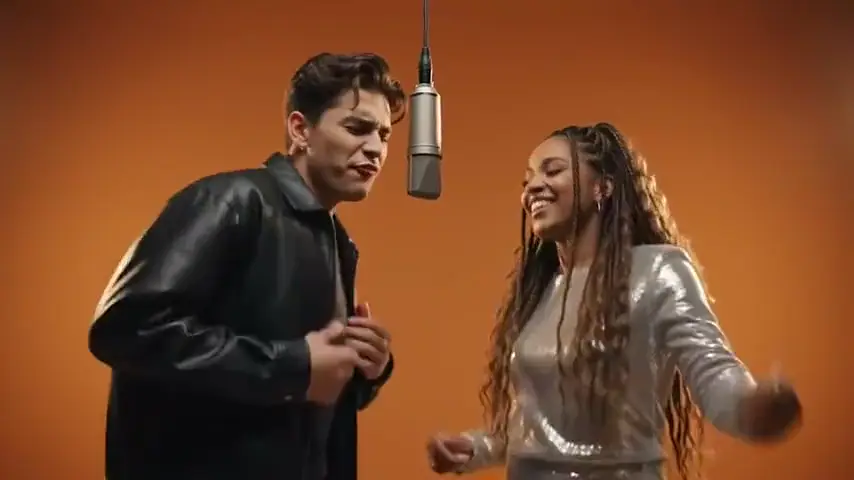 External reference
Leather & sequins
Add your photo and choose a scene. Your generated video will appear here when it's ready.
This is an external reference example, not a video generated by this tool.
Use photos you have permission to use. Your reference image is uploaded to storage and sent to the video provider.
Watch examplesSee the format
These external examples show the photo-to-rap format and possible visual directions. They are not samples generated by this tool; your result will vary with your photo, settings, and the video model.
External referenceLeather & sequins
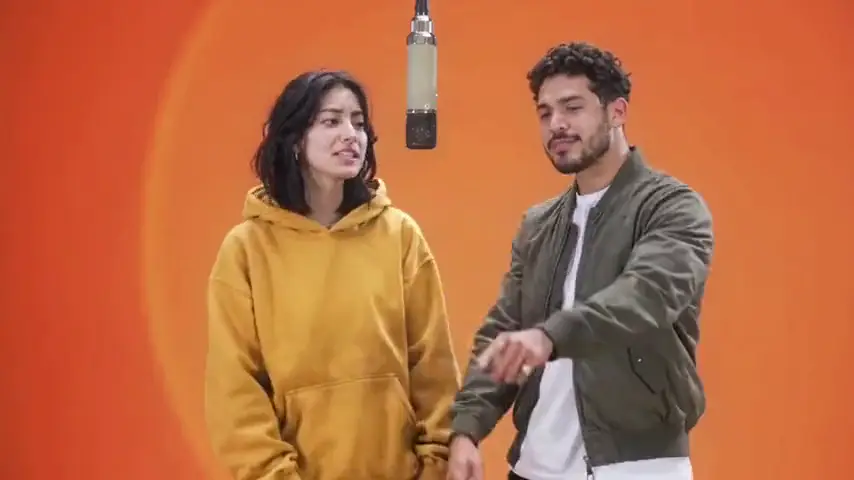 External reference
Hoodie & bomber
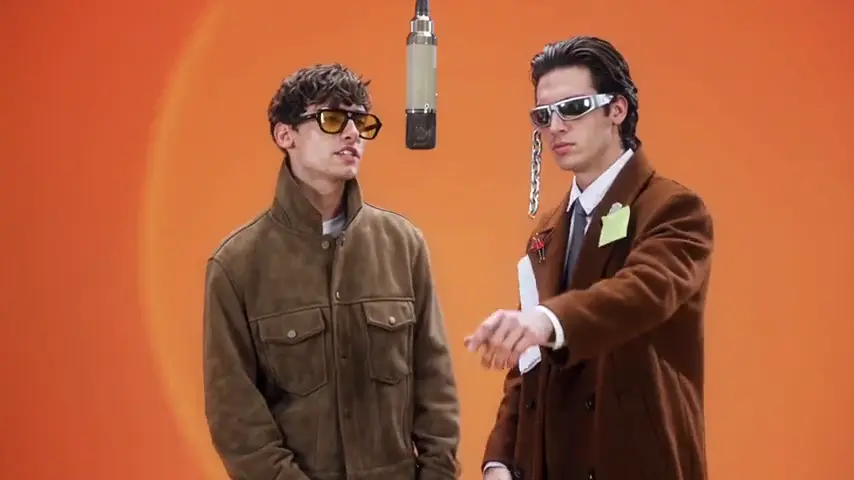 External reference
Shades & coats
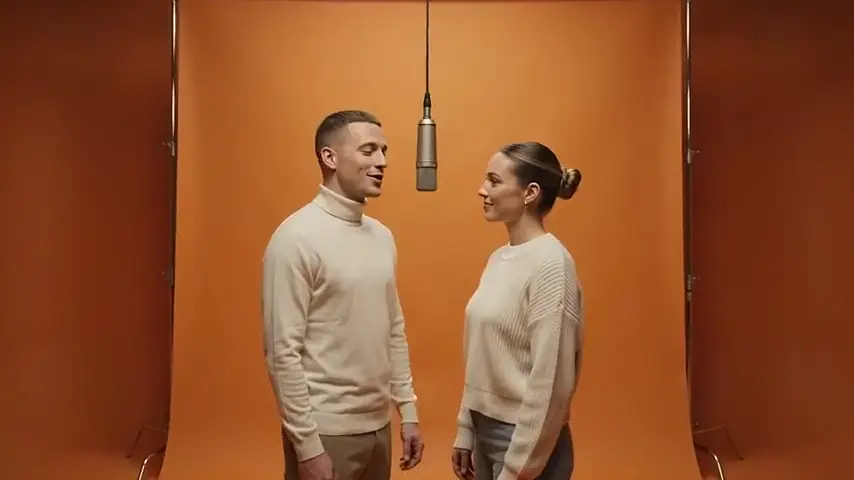 External reference
Wide booth duo
Find your angle
Start with a ready-made scene, then add the detail that makes it yours. Choosing an idea fills in the settings; it doesn't start a paid generation.
Birthday
Turn a friend's birthday into a short, playful shout-out. Add their name and one memorable habit for a more personal direction.
Friends
Put two friends on one stage. An inside joke, a shared hobby, or your usual banter gives the performance a starting point.
Couple
Make a playful video for the two of you. Use a shared memory or a small everyday detail rather than a long script.
Self intro
Give your profile or group chat a short introduction with some personality. Start with your hobby, your role, or the thing your friends know you for.
From photo to performance
You bring the people and the idea. The video model creates the moving image, rap vocals, and music together.
Pick Solo for one portrait, or Duo for two portraits or one photo together. Clear faces and good lighting give the model a better reference. Sign in before uploading your image.
Choose an occasion, a stage, and a performance vibe. An orange booth works for a bold duo; a birthday stage adds a celebratory direction. You can add one short idea or use the preset as it is.
Check the video settings and current credit estimate, then start generation. Preview the finished clip with sound and download the video. To try a different performance, adjust your settings and create a new video.
Made for a short performance
Keep the creative choices simple: who is performing, where they are, and what the moment is about. This tool focuses on short photo-to-rap videos you can preview and download.
Start with one clear portrait for a personal introduction, a birthday shout-out, or a playful performance. The photo guides the appearance, while your scene and idea guide the video. Faces, movement, and delivery can vary between generations.
Use a photo of both people, or combine two individual portraits into one reference. Check the combined preview before creating. Duo means a two-person performance; it doesn't guarantee separate voices or line-by-line exchanges.
Try the orange booth for a bright studio look, or choose a microphone setup, street cypher, or birthday stage. A stage preset sets a visual direction. It doesn't attach a particular artist, track, or original performance to your video.
External referenceOne video generation creates the visuals, rap vocals, and musical backing together. You don't need a separate music generator or a song upload. The result is a short video, with delivery and timing interpreted by the model.
Choose a sharp photo with a visible face, even lighting, and no heavy obstruction. For two people, check that both faces remain readable in the reference frame. Use JPEG, PNG, or WebP files up to 10MB each.
The default is a 10-second, 720p, vertical video with sound. Available settings affect the credit estimate, so check the displayed cost before submitting. Creating a fresh performance is a new generation and uses a new credit quote.
FAQ
Photo tips, duo limits, sound, and credits—here's what to expect.
Photo to Rap Video is a browser tool for making short AI rap videos from a photo of one or two people. You choose a scene and an optional idea, and a video model generates the moving image, rap vocals, and music together. The finished result is a video file.
Choose Solo or Duo, sign in, and add the required photo. Pick a scene, stage, and vibe, then check the credit estimate before creating. When generation finishes, preview the video with sound and download it.
Yes, Duo accepts two portraits or one photo with both people. Two portraits are combined into a single reference frame for the video model, so check both faces in the preview. The result may vary, and two separate voices or precisely alternating performances aren't guaranteed.
Choose Orange Booth in the stage settings, then select the occasion and performance vibe you want. The preset asks for an orange studio-style backdrop. It doesn't include an original song, copy an artist's voice, or guarantee an exact recreation of a reference example.
The video model is asked to generate rap vocals and music together with the visuals. You don't need to create music separately or upload a song. Sound, timing, and delivery are generated by the model and can differ between attempts.
Use an occasion preset or add one short idea, such as a birthday name, shared memory, or personal interest. The description guides the performance rather than acting as a script. Exact wording and every requested detail aren't guaranteed.
You can browse the reference examples and explore the settings without generating a video. Generation uses credits, with the current cost shown before you submit. Any introductory credits depend on the account offer actually available; there is no promise of unlimited free generation.
You can use this photo-to-rap tool in a desktop or mobile browser. There is no separate mobile app to download. Keep a stable connection while uploading your photo and checking the generation status.
The default settings are 10 seconds, 720p, and a vertical 9:16 format. Other settings are shown only when available for the connected video model. This tool is designed for short clips rather than full-length songs or long music videos.
You can change the input settings and generate a new video. This version doesn't include a timeline editor, subtitle editor, or separate music export. Download the finished video if you want to continue editing it with another tool.
Duo asks the model for two people in the same performance. It doesn't provide separate voice controls, guaranteed voice identities, or precise turn-taking. The generated vocals and the way each person performs depend on the model output.
If a task is marked as a technical failure, its generation credits are returned once under the task's failure handling. Check the status and error message before starting again. Choosing to create another performance after a completed video starts a new task and uses credits.
A temporary connection problem doesn't necessarily mean that the model stopped working. Sign in to the same account and check your generation history for the task before starting a new one. Task recovery and saving depend on the service being available, so follow the status shown for that task.
Use clear, well-lit JPEG, PNG, or WebP images no larger than 10MB each. Avoid tiny faces, heavy blur, and objects covering the face. For a duo, both people should be easy to distinguish in the combined preview or original photo.
Your reference image is uploaded to configured storage and made available to the video provider for generation. Removing a browser preview doesn't delete a stored file, and this version doesn't promise a fixed automatic deletion period. See the privacy policy and contact support if you need to request deletion.
Pick a photo, choose the vibe, and give your next short video something to say.
Turn my photo into a rap video